
How to Make a Word Search Puzzle in 5 Minutes (Step-by-Step Guide)

Making a word search puzzle doesn’t have to be complicated or time-consuming. Whether you’re a teacher preparing classroom materials, a KDP publisher creating puzzle books, or simply want to make a custom puzzle for entertainment, you can create professional-quality word searches in just five minutes using professional word search maker tools. This guide will walk you through everything you need to make a word search puzzle from start to finish, plus show you the fastest methods available today.
What You Need Before You Start
Before you begin creating your word search, gather these essential elements:
Your word list is the foundation of any word search puzzle. Choose 10-20 words related to your theme. For beginners, start with shorter words (4-8 letters) as they’re easier to place and solve. Make sure your words are spelled correctly and appropriate for your target audience.
A clear theme helps your puzzle feel cohesive and purposeful. Popular themes include holidays, seasons, animals, vocabulary lists, or specific topics like space exploration or historical figures. A strong theme makes your puzzle more engaging and marketable if you plan to sell it.
Your target difficulty level determines grid size and word placement. Easy puzzles use 10-15 words in a 15×15 grid with horizontal and vertical placements. Medium difficulty includes diagonal words in a 20×20 grid. Hard puzzles use 20+ words, all directions including backwards, and larger grids up to 30×30.
Different age groups require different approaches when creating word searches for different age groups, so understanding your audience helps you make better design decisions.
Method 1: Using an Online Word Search Generator (Fastest Method)
The quickest way to make a word search puzzle is using a dedicated word search generator tool. This method takes less than five minutes and produces professional results.
Step 1: Choose your generator tool. Select a word search generator that meets your needs. Free options work well for occasional use, but serious publishers benefit from professional tools with advanced customization. Look for generators that offer print-quality output (300 DPI minimum), multiple grid sizes, and font options. You can compare the best word search generator tools to find the right fit for your needs.
Step 2: Enter your word list. Type or paste your words into the generator’s input field. Most tools accept one word per line. Review your list carefully for spelling errors. Once the puzzle generates, fixing mistakes requires starting over.
Step 3: Customize your puzzle settings. Adjust these key parameters:
- Grid size (typically 15×15 to 25×25)
- Word directions (horizontal, vertical, diagonal, backwards)
- Font style and size for readability
- Title and instructions text
- Answer key inclusion
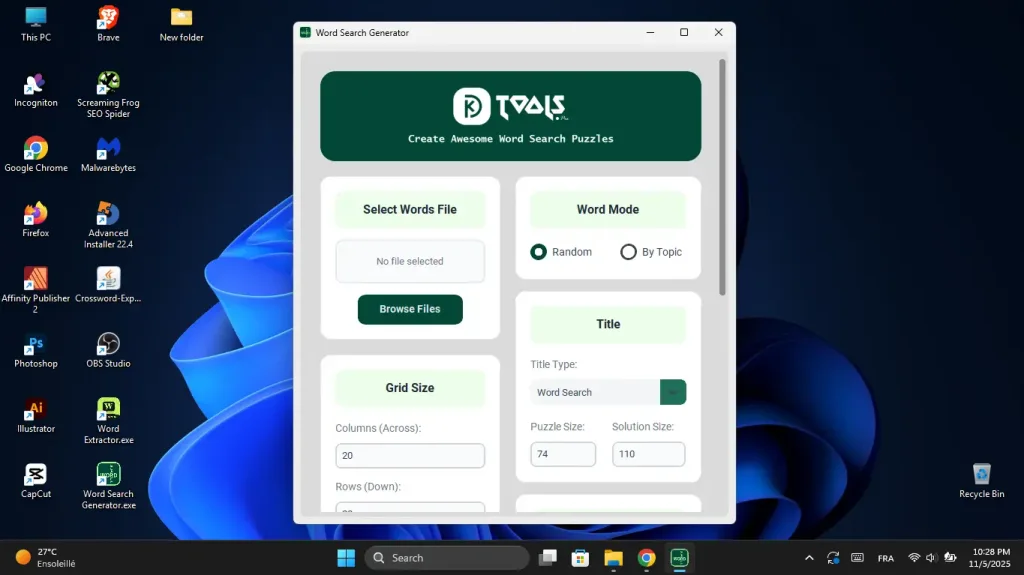
Step 4: Generate and preview. Click the generate button and preview your puzzle. Check that all words fit properly, the layout looks balanced, and the difficulty matches your intention. If you’re not satisfied, regenerate with different settings. This only takes seconds.
Step 5: Download and use. Export your puzzle in your preferred format. For printing, choose PDF format at 300 DPI resolution. For digital use, PNG or JPEG works well. Save both the puzzle and answer key for future reference.
Want to create professional word searches in seconds? Try KDPTools’ free demo and see how easy puzzle creation can be.
Method 2: Creating Word Searches Manually (Traditional Approach)
While slower than using a generator, making word search puzzles by hand gives you complete creative control. This method works well if you want a unique layout or are teaching puzzle construction concepts.
Start with graph paper or a grid template. Draw a square grid. 15×15 is a good starting size for beginners. Label your columns and rows if you want coordinates for the answer key.
Place your words strategically. Write your first word horizontally across the grid. Add your second word vertically, ideally crossing the first word at a shared letter. This interlocking approach makes puzzles more interesting. Continue placing words in various directions, ensuring they don’t overlap incorrectly.
Common mistakes to avoid when placing words manually:
- Placing too many words in the same direction (makes puzzles too easy)
- Creating unintentional words with leftover spaces
- Leaving large empty sections that make word hunting too obvious
- Forgetting to create an answer key before filling random letters
Fill empty spaces with random letters. Once all words are placed, fill remaining squares with random letters. Avoid using uncommon letters like Q, X, or Z too frequently. Create a natural-looking distribution similar to normal text.
Create your answer key. Before filling in random letters, mark or highlight where each word appears. This becomes your answer key and helps verify all words are placed correctly.
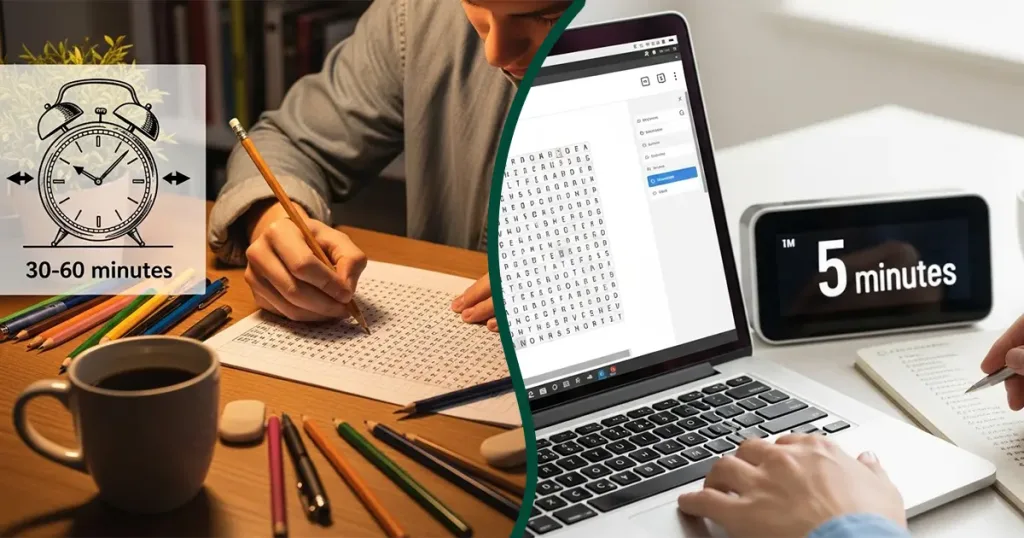
Manual creation typically takes 30-60 minutes per puzzle. For anyone making more than a few puzzles, automated tools become significantly more efficient. If you’re creating word search puzzle books for publishing, you’ll want to use faster methods that maintain consistent quality.
[Link “creating word search puzzle books for publishing” to: /word-search-puzzle-generator-kdp-publishing/]
Method 3: Using Spreadsheet Software
Microsoft Excel, Google Sheets, or similar programs offer a middle ground between manual and automated creation. This method provides structure while maintaining creative control.
Create a square grid using cells as your puzzle squares. Format cells to be perfect squares (same height and width) for a clean appearance. Set font size large enough for easy reading, typically 14-16pt for print.
Type one letter per cell to build your puzzle. Use cell borders to define your puzzle boundary. Apply different background colors to track placed words versus random letters during construction.
This method works best for simple puzzles but becomes tedious for large or complex designs. Spreadsheets lack features like automatic word placement, collision detection, or instant regeneration that dedicated generators provide.
How to Make Your Own Word Search More Engaging
Generic word searches blend together. Make yours stand out with these enhancement strategies:
Theme-specific vocabulary creates educational value. Instead of random words, use terminology from a specific subject. A “Solar System” puzzle might include: Mercury, Venus, asteroid, orbit, galaxy, telescope, astronaut, and constellation.
Visual elements boost appeal, especially for younger audiences. Add themed clipart in corners, use decorative borders, or incorporate the theme into the title design. Just ensure decorations don’t interfere with puzzle readability.
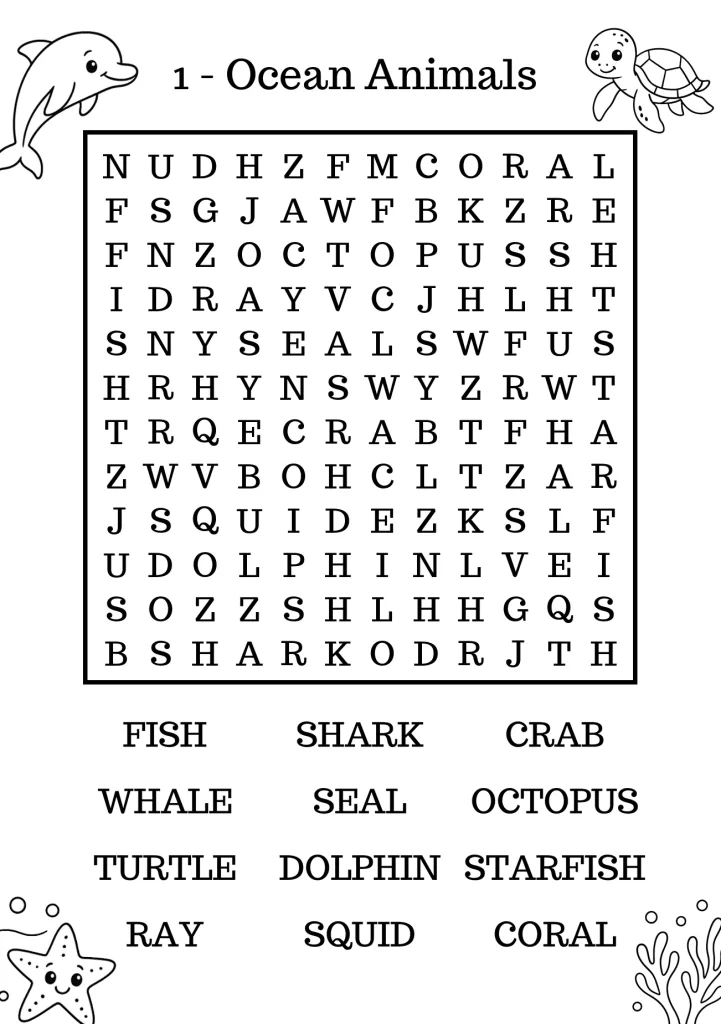
Difficulty progression keeps solvers engaged. If creating multiple puzzles, start easy and gradually increase challenge. Begin with short words and simple directions, then add longer words, diagonal placements, and backwards words in later puzzles.
Clear instructions eliminate confusion. State the puzzle theme, list how many words to find, specify if words can appear backwards or diagonally, and mention whether the word list is provided or if solvers must discover words themselves.
Creating Word Search Puzzles for Different Purposes
Your puzzle creation approach should match your intended use:
For classroom teachers, educational content comes first. Align words with curriculum topics, adjust difficulty for grade level, and include learning objectives. Keep puzzles on single pages for easy photocopying. Make word search puzzles that reinforce spelling and vocabulary without feeling like traditional homework.
For KDP publishers, marketability and production speed matter most. Create puzzles in popular niches (large print for seniors, holiday themes, kids activities), maintain consistent formatting across books, and generate puzzles quickly to publish more books. Professional appearance and print quality separate successful books from amateur attempts.
For personal use or gifts, customization creates meaning. Use inside jokes, family member names, or memories as word search terms. Create puzzles for special occasions like birthdays, weddings, or holidays with personalized word lists.
For Etsy printables, visual appeal drives sales. Invest time in beautiful formatting, offer multiple sizes and difficulty levels, and create thematic collections. Buyers expect high-quality, print-ready files they can use immediately.
Comparing Word Search Creation Tools
Different tools serve different needs. Here’s how to choose:
Free online generators work well for occasional use, making a few puzzles for classroom or personal use. They typically offer basic customization and standard output formats. Limitations include watermarks, restricted commercial use, limited grid sizes, and no batch creation features.
Professional puzzle software targets serious publishers and content creators. These tools offer unlimited generation, commercial licensing, advanced customization, batch processing, and print-ready output at professional resolution. The investment pays off quickly if you create puzzles regularly. When choosing the right word search creator, consider your volume needs and quality requirements.
Word processing templates provide a DIY approach using familiar software. They require more manual work but cost nothing beyond your existing software. Best for occasional users comfortable with manual formatting.
[EDUCATIONAL CTA BOX] Download our free word search creation checklist to ensure every puzzle you make is high-quality and professional. [Button: Download Free Checklist]
Tips for Creating Word Search Puzzles Faster
Speed matters when you’re making word search puzzle books with dozens or hundreds of puzzles:
Batch your word lists in advance. Spend one session researching and compiling words for multiple puzzles. This focused approach is faster than switching between research and creation repeatedly.
Use templates for consistent formatting. Once you have settings that work, save them as presets. Apply the same fonts, grid sizes, and styling across all puzzles for a cohesive look.
Leverage word list resources instead of creating from scratch. Educational vocabulary lists, thesaurus categories, and themed word collections save significant time. Just ensure you have rights to use any word lists in commercial projects.
Automate repetitive tasks with quality tools. If you’re serious about creating word searches regularly, invest in software that handles the tedious parts. The time saved after just a few puzzles covers the investment cost.
Common Mistakes When Making Word Searches (And How to Avoid Them)
New puzzle creators often make these errors:
Overcrowding puzzles with too many words makes them frustrating rather than challenging. Stick to 10-15 words for easy puzzles, 15-20 for medium, and 20-25 maximum for hard. More words often means smaller fonts and cluttered grids.
Inconsistent difficulty within a puzzle book confuses users. If your book is marketed as “easy word searches,” every puzzle should match that difficulty. Don’t mix hard puzzles into easy collections.
Poor font choices reduce readability. Decorative or script fonts look pretty but make letters hard to distinguish. Use clean, simple fonts like Arial, Helvetica, or custom fonts designed specifically for puzzles. Ensure adequate letter spacing.
Ignoring print specifications causes quality issues. Digital screens are forgiving, but printed puzzles reveal resolution problems, incorrect sizing, and formatting errors. Always design at 300 DPI minimum and test print before bulk printing or publishing.
Forgetting answer keys creates customer service headaches. Always include answer keys, preferably on the following page or in a solutions section. Some users will need them, and missing answers hurt reviews and credibility.
Start Creating Your Word Search Puzzles Today
Making a word search puzzle is simple once you understand the basic process. Whether you choose manual creation for complete control, online generators for speed, or professional software for volume production, the key is starting with a solid word list and clear purpose.
For beginners, start with a simple 15×15 grid, choose an easy theme with familiar words, and use an online generator to see professional results immediately. As you gain experience, experiment with larger grids, more complex word placements, and visual enhancements.
If you’re creating word search puzzles for publishing, teaching, or business purposes, the right tools make the difference between spending hours on each puzzle or generating professional results in minutes. The time you save can be invested in creating more content, researching better themes, or growing your publishing business.
For a comprehensive overview of all available word search creation methods, tools, and strategies, check out our complete word search maker guide that covers everything from beginner basics to advanced publishing techniques.
Ready to Create Professional Word Searches in Minutes?
KDPTools makes creating word search puzzles effortless. Our word search generator produces print-ready, 300 DPI puzzles customized exactly how you want them. Whether you’re creating one puzzle or building an entire book, we’ve got you covered.
✓ Unlimited puzzle generation
✓ Full customization (fonts, sizes, difficulty)
✓ KDP-ready PDF export
✓ No design skills needed
✓ Free demo available

KDPTools Content Team creates simple, practical guides to help publishers make high-quality puzzle books using smart automation tools like Word Search Generator, and Word Search Book Builder.
We focus on clear tutorials, fast workflows, and print-ready puzzle interiors for Amazon KDP and Etsy.